

For a Next.js page, use LCP to find when the main above-the-fold content becomes visible, INP to find why a real interaction waits before the next frame, and CLS to find what moves without a user action. In practice, start with field data grouped by exact route and device segment, then trace the failing metric to its element, request chain, client boundary, or layout change. Make one small change, measure the same segment again, and record the evidence. This is more useful than tuning a site-wide average or treating a lab score as a diagnosis.
The practical order is simple: identify the route that matters, identify the people and devices represented by the data, identify the bottleneck behind the metric, and verify the change under a comparable measurement. The rest of this guide turns that order into a worksheet, a decision matrix, and an implementation path.
The short answer: measure the route, not the average
The three metrics describe different failure surfaces:
- LCP, or Largest Contentful Paint, is the time at which the largest visible content element in the initial viewport is painted. It may be a hero image, a heading, or another prominent block. Find the element first; the element determines the useful investigation.
- INP, or Interaction to Next Paint, describes the delay between an input such as a tap, click, or keypress and the next painted response. Long event handlers, React work, style calculation, layout, paint, and third-party JavaScript can all contribute.
- CLS, or Cumulative Layout Shift, measures unexpected movement of visible content. Missing media dimensions, font changes, late banners, and content inserted above existing content are common causes.
A practical starting reference is LCP below 2.5 seconds, INP below 200 milliseconds, and CLS below 0.1 (thresholds at 75th percentile; see Web Vitals and Optimize INP). Store the raw value and emitted rating with route, device segment, release, and collection window; a number alone is not a diagnosis. Use a lab run to inspect a mechanism and route-segmented field data to decide whether it matters. The two views are complementary, not interchangeable.
The RSBV framework: route, segment, bottleneck, verify
Treat each reading as a metric attached to a route, a segment, and a suspected cause. Use this four-pass framework before changing code.
1. Route: name the page and state
Record the exact pathname and loaded state. A landing page, an open-filter catalogue, and an authenticated dashboard can share a template while having different critical work. Retain the concrete path so the trace can be reproduced.
2. Segment: preserve the conditions that expose the problem
Group observations by safe, useful dimensions such as device class, browser, connection category, geography, and route. Do not combine mobile and desktop when only one group experiences the delay. Mark tiny or unknown samples as provisional. Recheck a mobile LCP change against the mobile row and an interaction change against the interaction and device combination that exposed it; a new aggregate cannot prove the original problem was addressed.
3. Bottleneck: map the metric to a causal surface
Use the metric to choose where to look, not what to change blindly.
- For LCP, trace the named element through discovery, dependencies, transfer, decode, and render.
- For INP, capture the interaction and inspect its handler, React work, long tasks, layout, paint, bundle, and third-party scripts.
- For CLS, name the shift source and the DOM or style change that left its geometry unknown.
4. Verify: close the loop with a comparable measurement
Write the baseline before editing. Make the smallest change that addresses the observed cause, record the release, and repeat the measurement on the same route and segment. Compare raw value, rating, and trace evidence, then check the other two metrics. If field data is missing, label it unknown: a lab run can test a hypothesis but cannot replace the field observation.
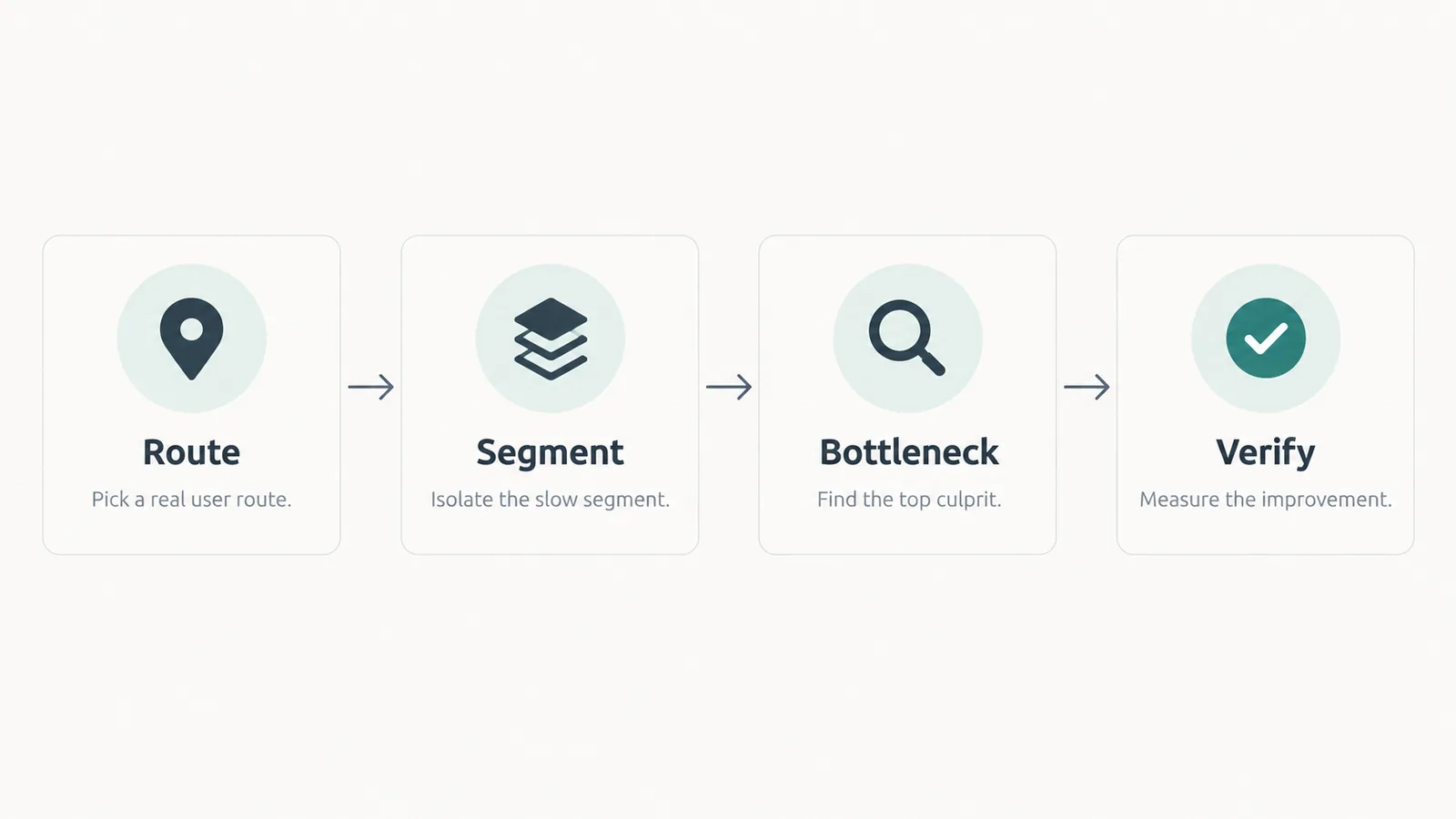
Use RSBV before changing code.
Decision matrix: select the first investigation
Use this matrix to prevent a familiar fix from displacing the evidence. The last column is intentionally negative: it identifies work that may be valid later but is a weak first response to the signal.
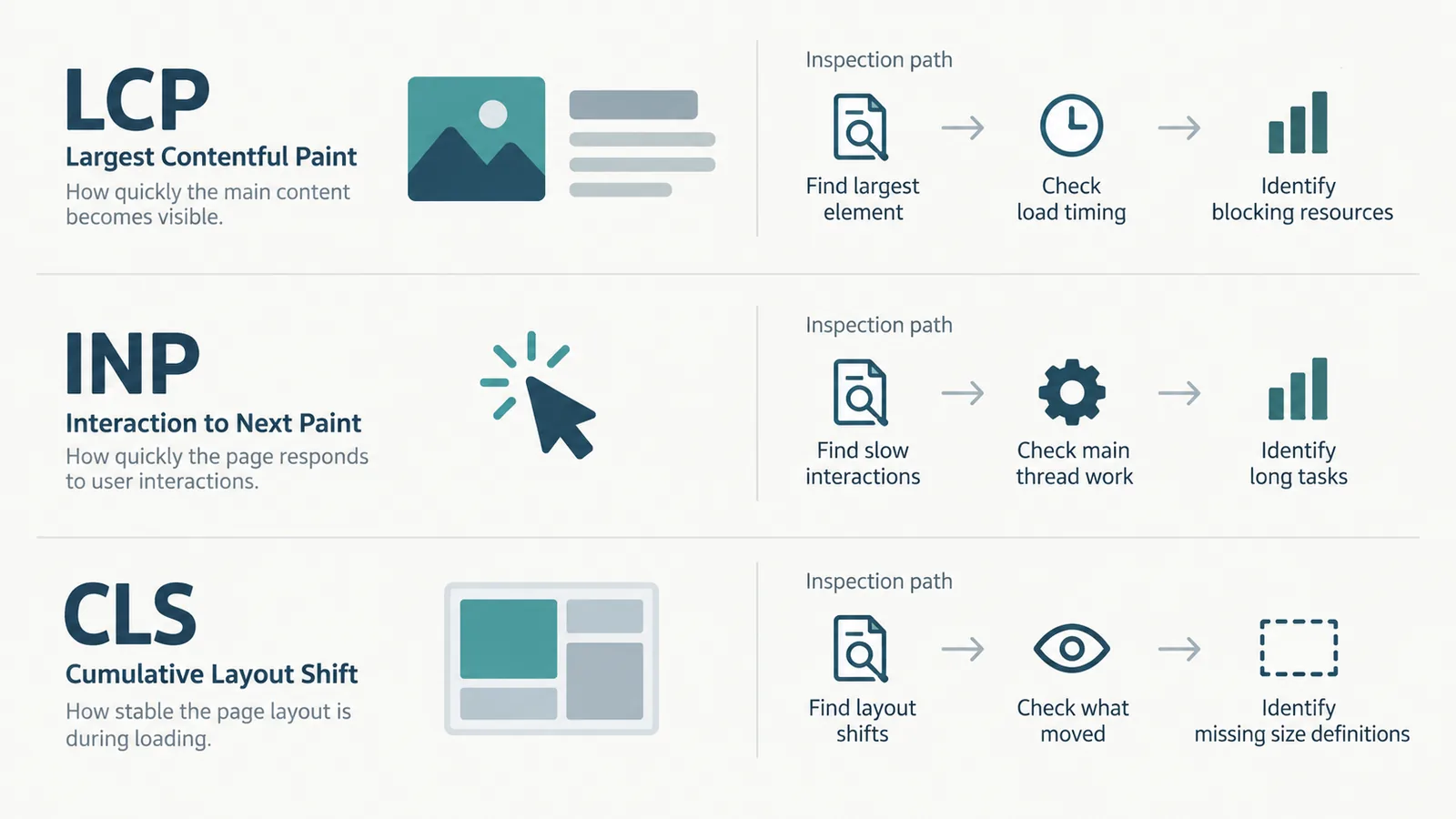
Metric selects investigation, trace selects change.
| Signal in a route segment | Inspect first | Next.js surface to consider | Do not choose first without evidence |
|---|---|---|---|
| LCP is the outlier and the trace names an image | LCP marker, image discovery time, initiator chain, rendered size, and requested size | next/image, accurate sizes, dimensions, priority for the genuine LCP image, and a shorter data path | Compressing every image or removing unrelated JavaScript |
| LCP names text | Font request, fallback paint, server data dependency, and the component boundary around the text | next/font, limited weights and subsets, a fast Server Component path, and streaming for non-critical content | Adding a preload without knowing which resource blocks the text |
| INP is the outlier for one interaction | Event timing, the handler, React render, long tasks, layout, paint, and the responsible bundle | A smaller use client boundary, deferred non-urgent updates, chunked work, and delayed third-party scripts | Adding memoization or a broad rewrite before profiling the interaction |
| CLS is the outlier and the shift marker names media | Element geometry before and after load, container size, and CSS | width and height or a sized fill parent, reserved space, and stable skeleton geometry | Hiding the shift or inserting a late placeholder above content |
| CLS is caused by a font, banner, or embed | The element inserted or resized after first layout | Metric-compatible fallback, reserved container space, and an insertion point that does not displace existing content | Treating a higher Lighthouse score as proof that the field shift is gone |
| No reliable field signal exists | Collection coverage, route naming, segment definitions, and consent or privacy handling | A minimal useReportWebVitals integration and a reviewable storage path | Setting a permanent budget from a single lab run |
Triage worksheet: turn evidence into an owner and a test
Copy the following table into the issue or pull request that owns the change. Keep placeholders until the approved collector supplies real values. A row is incomplete when it has a rating but no route, device segment, or causal evidence.
| Route and device segment | LCP, INP, or CLS raw value and rating | Identified element or cause | Request, client, or layout evidence | Proposed change | Owner | Verification measurement | Rollback or limitation |
|---|---|---|---|---|---|---|---|
[path] / [segment] | LCP: [value] / [rating] | [element or unknown] | [trace or RUM evidence] | [smallest reversible change] | [person or team] | [same path, segment, release comparison] | [condition to revert or caveat] |
[path] / [segment] | INP: [value] / [rating] | [interaction or unknown] | [event, task, bundle evidence] | [boundary or scheduling change] | [person or team] | [same interaction and segment] | [condition to revert or caveat] |
[path] / [segment] | CLS: [value] / [rating] | [shift source or unknown] | [layout-shift evidence] | [geometry or insertion change] | [person or team] | [same route and load state] | [condition to revert or caveat] |
The worksheet joins the field signal, browser mechanism, and verification rule. It also makes uncertainty visible: an identified image request can be assigned, while an unknown cause remains an investigation rather than a cosmetic fix.
Instrument first: a Next.js field-data pattern
The existing page uses the Next.js useReportWebVitals pattern to send metric name, value, rating, identifier, and pathname to a collector. The following adaptation keeps that shape while making the fallback explicit. The endpoint is an example only; replace it with the approved collection route and apply the project privacy rules before deployment.
"use client";

import { useReportWebVitals } from "next/web-vitals";

export function WebVitals() {
  useReportWebVitals((metric) => {
    const body = JSON.stringify({
      name: metric.name,
      value: metric.value,
      rating: metric.rating,
      id: metric.id,
      path: window.location.pathname,
    });

    const sent = navigator.sendBeacon?.(
      "/api/vitals",
      new Blob([body], { type: "application/json" }),
    );

    if (!sent) {
      void fetch("/api/vitals", {
        method: "POST",
        headers: { "content-type": "application/json" },
        body,
        keepalive: true,
      });
    }
  });

  return null;
}
Mount it once in the root layout. Store enough context to segment by route and device without unnecessary personal data, and confirm the hook and fields against the installed Next.js version. Telemetry that cannot be joined to a route or segment cannot support the worksheet.
LCP: follow the largest element to the first blocked request
Start in the browser Performance panel and locate the LCP marker. If it names an image, inspect discovery time, the initiating request, and whether the resource matches the rendered slot.
For a real hero image, the supplied implementation pattern is:
import Image from "next/image";

<Image
  src={hero.src}
  alt={hero.alt}
  width={1280}
  height={720}
  priority
  fetchPriority="high"
  sizes="(max-width: 768px) 100vw, 1280px"
/>
The dimensions are placeholders for the actual asset. Use priority or the installed version equivalent only for the genuine critical-path image. Make sizes match the CSS slot at each viewport; a desktop-sized file on a narrow phone indicates request-sizing work.
If the trace shows a data dependency, keep LCP content on the shortest safe path. A slow Server Component fetch can delay paint, while non-critical content can often sit behind Suspense. Static generation or incremental regeneration suits cache-safe content; personalised or rapidly changing content may need another path, so record the constraint.
If text is the LCP element, inspect the font request and fallback paint. next/font, limited weights and subsets, and a metric-compatible fallback can reduce work and reflow. A remote image host may need a connection warm-up, but add it only when the trace places that host in the LCP chain.
INP: measure the interaction, not just the bundle
INP requires a specific interaction. A page can look complete while a filter, menu, tab, or form control waits on a large handler or React update. Reproduce the interaction and inspect main-thread work between input and next paint.
In the App Router, keep use client close to the interactive leaf when surrounding content needs no browser state. Pass static server-rendered content as children where appropriate, and avoid large objects across a Server Component and Client Component boundary because client data enters the serialized route payload. Keep the interactive surface small without removing required behaviour.
For an expensive filter or sort, separate the urgent input update from non-urgent result work. A compact illustration is:
"use client";

import { useState, useTransition } from "react";

export function Filter({ items }: { items: Item[] }) {
  const [query, setQuery] = useState("");
  const [results, setResults] = useState(items);
  const [, startTransition] = useTransition();

  function onChange(value: string) {
    setQuery(value);
    startTransition(() => {
      setResults(items.filter((item) => item.name.includes(value)));
    });
  }

  return (
    <>
      <input value={query} onChange={(event) => onChange(event.target.value)} />
      <Results items={results} />
    </>
  );
}
This is a scheduling tool, not proof of a fast interaction. Profile the handler and result rendering first, break up main-thread work, and test browser-yielding APIs against the supported browser set. Delay third-party scripts only when the feature allows it, and record the resulting trade-off.
CLS: reserve space before the browser needs it
CLS becomes easier to diagnose when the shift source is named. Give images explicit width and height, or use fill inside a parent with a known size. Reserve space for ads, embeds, consent panels, and dynamic banners before their content arrives. Do not insert a new block above content that the visitor has already started reading.
A skeleton helps only when its geometry approximates the final component. A zero-height placeholder followed by a large card still shifts the page. Choose font fallback and font-display behaviour for the content and language, then inspect line wrapping; next/font does not make arbitrary metrics identical.
The same change can touch multiple metrics. An image dimension fix can reduce CLS and also alter LCP bytes. A font adjustment can change LCP and wrapping. Write the expected side effects in the verification column so a single improved reading does not conceal a new problem elsewhere.
Example: a placeholder-based catalogue triage
This is an instructional example, not a CodeAustral project record or measured result. Every measurement is a placeholder; the value is the decision sequence, not an invented outcome.
Imagine a team reviewing /catalogue on mobile. Its first worksheet row is:
| Field | Entry for the example |
|---|---|
| Route | /catalogue |
| Device segment | mobile / [collector definition] |
| Baseline | LCP [value] / [rating]; INP [value] / [rating]; CLS [value] / [rating] |
| Candidate cause | [element, interaction, or shift source] |
| Release | [baseline release identifier] |
| Limitation | No supplied project data; do not infer an outcome |
Work through it in order:
- Instrument. Add
WebVitalsonce in the root layout, use the approved endpoint instead of/api/vitals, and confirm that the record contains pathname, metric, raw value, rating, and identifier. Label the first usable window as baseline. - Choose one row. An LCP signal calls for an initial-load trace; an INP signal for a filter calls for that interaction; a CLS signal calls for layout-shift inspection.
- Follow evidence. For an image LCP, compare rendered slot,
sizes, asset dimensions, and discovery order. For text LCP, inspect font and data dependencies. For a filter INP, profile rendering and defer only non-urgent work. For a banner CLS, reserve its final space. - Edit once. Change the image attributes, client boundary, scheduling path, font fallback, or reserved container that matches the evidence. Do not combine unrelated playbooks.
- Verify. Repeat the same route and segment. Fill the after-value from the real collector, or write
not available. Add trace evidence and any effect on the other metrics; this example has no outcome until those cells contain actual data.
The metric selects the investigation, the trace selects the change, and the repeated segment measurement closes the row. A lab trace can reject a hypothesis, but cannot supply missing project data.
Implementation steps: from first sample to release gate
Use this checklist for a focused performance change:
- Define the record. Name route, state, segment, percentile, unit, rating, release, and collection window.
- Check coverage. Confirm that approved telemetry receives all three metrics and usable route names; mark unavailable dimensions unknown.
- Create the baseline. Capture field reading and a matching lab trace where possible, then link the suspected element, interaction, or shift source.
- Choose the smallest lever. Use accurate image sizing, a narrowed client boundary, scheduled work, or reserved geometry when evidence points there.
- Record constraints. Note cache freshness, personalisation, browser support, font coverage, accessibility, third-party functionality, and privacy limits.
- Verify and close. Repeat the lab trace and await comparable field data. Check all three metrics, then close only when evidence and measurement are present; otherwise revert or return the row to investigation.
Limitations and trade-offs
This workflow narrows a performance investigation; it does not remove uncertainty.
- Field coverage: a new route or sparse segment can be unstable. Do not manufacture precision from missing observations.
- Causality: a metric points toward a surface; an element trace, interaction trace, network record, or layout-shift record supports the code change.
- Lab versus field: a controlled run exposes a mechanism, while field data reflects varied devices, connections, browsers, third-party work, and page histories.
- Resource competition: the wrong preload can compete with the resource that matters, so verify request order.
- Boundary and cache trade-offs: smaller client surfaces and static generation can be unsuitable for required interaction, personalisation, or rapidly changing content.
- Behaviour changes: font fallback and delayed scripts can affect visual fidelity, feature timing, analytics coverage, or accessibility. Test the feature as well as the metric.
- No project evidence: the worksheet and example are editorial assets, not evidence of a CodeAustral customer, deployment, test, budget, or outcome. Populate them from the application collector and approved diagnostic tools.
A practical next step
If the worksheet spans route architecture, client boundaries, and delivery config, bring the completed worksheet so discussion starts with route, segment, mechanism, and verification plan.
Build my estimate · Send a brief · See all work · CodeAustral services page
For the copy-paste collector this guide assumes, see the companion Next.js RUM snippet: measure LCP, INP, CLS per route and segment, which logs real-user LCP, INP, and CLS by route, device class, and release tag and computes p75 over a 28-day window.